
In this guide, we’ll show you how to create and save pins in OS Maps.
Create a Pin:
As well as creating routes and activities, you can also create, save and share pins to remember your favourite locations or save places you want to visit.
To create a pin:
1. Right-click anywhere on the map. Alternatively, drop a pin at any location by searching for it in the search bar at the top left of the screen.
2. Click 'View details'.
3. Click 'Save'.
To save your pin:
4. Give your pin a name, choose a category and add any notes you want to remember for next time.
5. Click 'Save' to save the pin to your account.

To edit a saved pin:
1. Go to the Menu (top-left) > Pins.
2. Select the pin you would like to edit and click 'Edit Pin'.
3. Change the name, update the category, or add or remove any notes.
4. Click 'Save' to save the changes.

View & Manage Your Pins:
To view your pins:
1. Go to the menu (top-left) > Pins. You will be able to see all your pins both in the left- hand panel, and on the map.
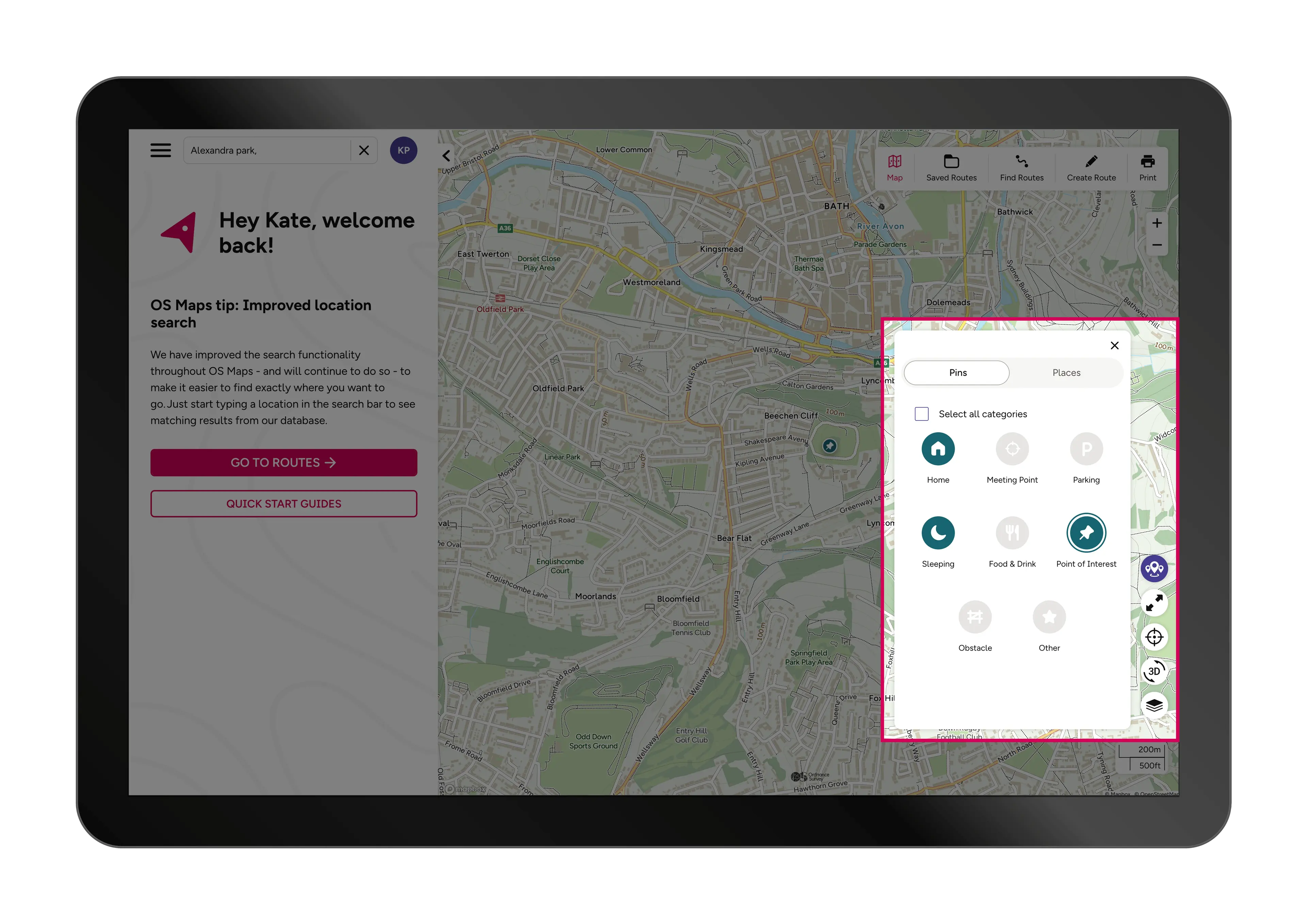
2. Alternatively, turn your pins on and off at any time via the Places menu (bottom right). You can choose whether to show all of your pins or just those pins in a certain category.


Add a Pin to a Route:
You can also use your pins when creating routes in OS Maps.
To add a pin to a route:
1. Start creating your route by using the 'Create Route'.
2. Make sure you have your Pins turned on. If these are not turned on, turn them on using the Places menu in the bottom right corner of the map.
3. To create a waypoint from a pin, select the pin you want to add to your route. Select 'Add to Route'. This will create a waypoint on your route with the same name and location as your pin. Any notes will be added to the waypoint description
4. Continue plotting your route.
See our Guide on Creating Routes for more information and guidance on how to create routes in OS Maps.


Sharing Pins:
After you’ve saved a perfect spot for a picnic, you might want to share it with your friend so they know where to meet you.
To share a pin:
1. Open your pin via one of the Pins menus.
2. Click 'Share' (left-hand panel) to share your pin on social media, WhatsApp or copy the link to share with friends.
3. Once your friend has received the pin, they will need to save this as a pin to their account to view it again later.

For more help & support on using OS Maps, head to our FAQ pages where you’ll find the answers to common questions.